

This computer science problem involves algorithmic thinking and programming concepts. The solution below explains the approach, logic, and implementation step by step.
ScanSolve AI Answer
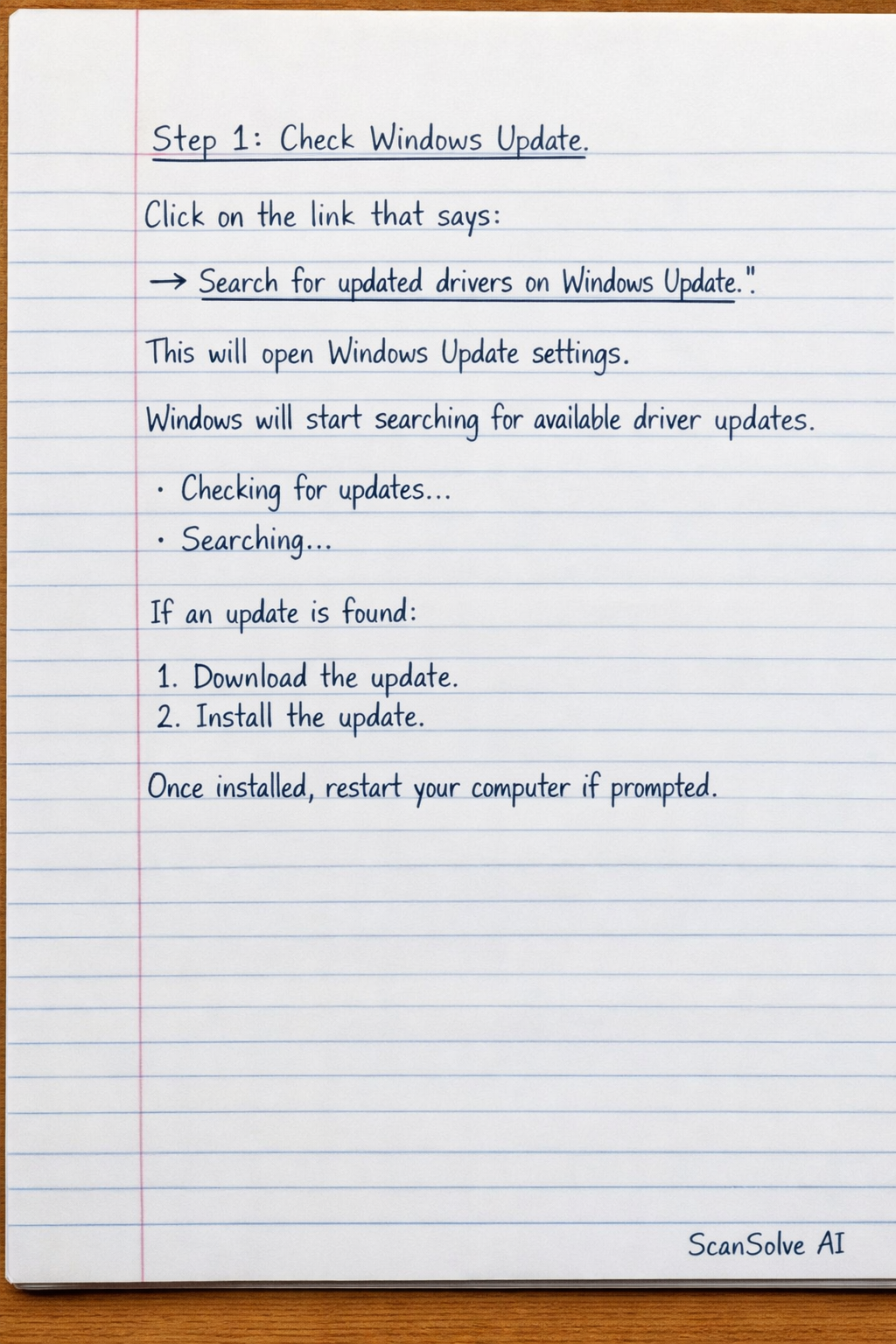
The message "The best drivers for your device are already installed" indicates that Windows has checked its local driver database and Windows Update (if configured) and found that the currently installed driver for your Realtek 8821CE Wireless LAN 802.11ac PCI-E NIC is the most suitable one it can automatically provide. However, the message also suggests that better drivers might be available from two sources: 1. Windows Update: Even if the initial check didn't find one, a direct search through Windows Update might reveal a newer version. 2. Device manufacturer's website: The manufacturer (Realtek, or your computer's manufacturer like HP, Dell, Lenovo if it's an integrated component) often provides the latest drivers directly. Here's what you should do: Step 1: Check Windows Update. Click on the link that says "→ Search for updated drivers on Windows Update" in the dialog box. This will open Windows Update settings and perform a more thorough check for available driver updates. If an update is found, install it. Step 2: Visit the manufacturer's website. If Windows Update doesn't find a newer driver, go to the website of your computer's manufacturer (e.g., Dell, HP, Lenovo) or Realtek's official website. Search for "Realtek 8821CE Wireless LAN 802.11ac PCI-E NIC" drivers for your specific operating system (e.g., Windows 10, Windows 11) and download the latest version. Install it manually. This process ensures you have the most up-to-date and compatible driver for your wireless adapter.