
We read your photo as:
The table above is in cell range A1:H11. Reason 1:
ScanSolve AI Answer
Step-by-step solution
30 stepsHere are the solutions to the questions:
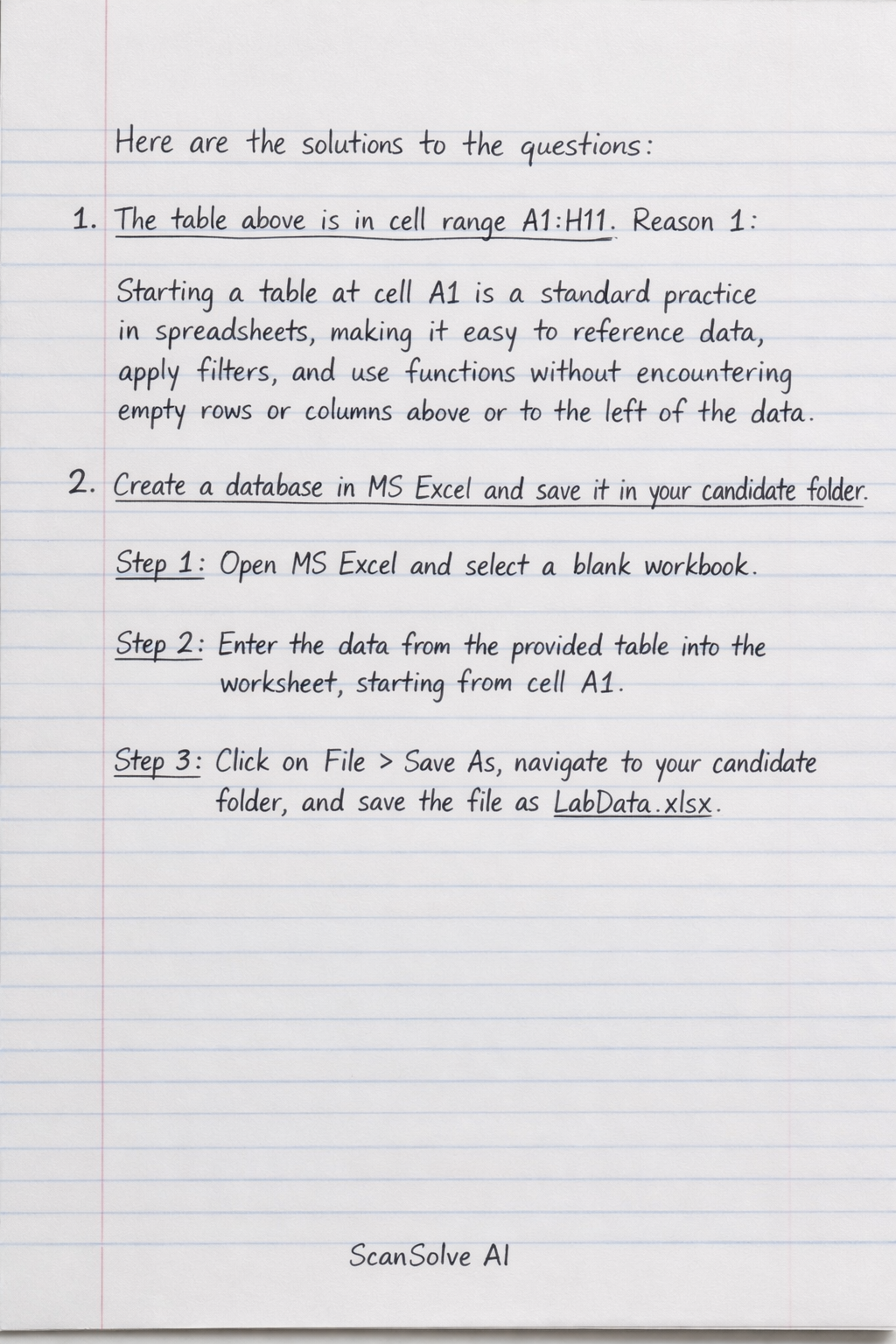
1. The table above is in cell range A1:H11. Reason 1:
Starting a table at cell A1 is a standard practice in spreadsheets, making it easy to reference data, apply filters, and use functions without encountering empty rows or columns above or to the left of the data.
2. Create a database in MS Excel and save it in your candidate folder.
Open MS Excel and select a blank workbook.
Enter the data from the provided table into the worksheet, starting from cell A1.
Click on File > Save As, navigate to your candidate folder, and save the file as
LabData.xlsx.3. Import the spreadsheet above into your database. Use the data as found in in your candidate folder. Ensure the field names are the same as above.
Open MS Access and create a new blank database.
Go to the External Data tab in the Access ribbon.
Click on New Data Source > From File > Excel.
Browse to your candidate folder, select
LabData.xlsx, and click Open.Choose "Import the source data into a new table in the current database" and click OK.
In the Import Spreadsheet Wizard, ensure "First Row Contains Column Headings" is checked.
Click Next.
Review the field names and data types.
Ensure they match the original spreadsheet. Click Next.
Choose "Let Access add primary key" or define your own.
Click Next.
Enter a table name (e.g.,
OriginalLabData) and click Finish.4. Create a query or form that will display the First Name, Last Name, and the male (M) students who carried out practicals in Lab 1 or Lab 2. Sort the records in ascending order by subjects. Adjust the field width to display all the data. Save data. Save asMaleLab.
In MS Access, go to the Create tab and click Query Design.
Add the
OriginalLabDatatable to the query.Drag the
First Name,Last Name, andDepartmentfields to the design grid.In the
Genderfield's "Criteria" row, type"M".In the
Labfield's "Criteria" row, type"LAB 1"and in the "or" row below it, type"LAB 2".In the
Departmentfield's "Sort" row, select Ascending.Run the query to view the results.
Adjust column widths as needed in the datasheet view.
Save the query as
MaleLab.5. Give the two possible ways to select all fields.
- In a table or query datasheet view, click the top-left corner of the datasheet (the square where the row and column headers meet).
- Use the keyboard shortcut Ctrl + A (select all).
6. To normalize the database, create the following structures for the sub tables, Students, Subjects, and LabRoom. A faster way of creating the three sub tables using a Practical table and then delien delete unwanted fields. Create the following tables in MS Access: Students, Subjects, and LabRoom using the structures below.
Students(StudentID, FirstName, LastName, Gender)
Subjects(SubjectID, SubjectName)
LabRoom(SectionID, LabRoomName)In MS Access, go to the Create tab and click Table Design for each table.
For the
Studentstable- Add
StudentID(AutoNumber, Primary Key). - Add
FirstName(Short Text). - Add
LastName(Short Text). - Add
Gender(Short Text).
- Add
For the
Subjectstable- Add
SubjectID(AutoNumber, Primary Key). - Add
SubjectName(Short Text). Populate this table with unique values from theDepartmentcolumn (Science, Arts, Business).
- Add
For the
LabRoomtable- Add
SectionID(AutoNumber, Primary Key). - Add
LabRoomName(Short Text). Populate this table with unique values from theLabcolumn (LAB 1, LAB 2, LAB 3).
- Add
Save each table with its respective name
Students,Subjects,LabRoom.To populate
StudentsfromOriginalLabData, you would typically create an append query or manually copy/paste, ensuringStudentIDis unique.For
SubjectsandLabRoom, create make-table queries fromOriginalLabDatato extract uniqueDepartmentandLabvalues, then setSubjectIDandSectionIDas AutoNumber primary keys.7. Create a relationship among the database from the three created tables above. Use referential integrity.
Modify the
Studentstable to include foreign keys- Add
SubjectID_FK(Number, Long Integer) to link toSubjects.SubjectID. - Add
SectionID_FK(Number, Long Integer) to link toLabRoom.SectionID.
- Add
Go to the Database Tools tab and click Relationships.
Add the
Students,Subjects, andLabRoomtables to the Relationships window.Create relationships
- Drag
SubjectIDfrom theSubjectstable toSubjectID_FKin theStudentstable. - Drag
SectionIDfrom theLabRoomtable toSectionID_FKin theStudentstable.
- Drag
In the "Edit Relationships" dialog box for each relationship, check the box for Enforce Referential Integrity and click Create.
Still stuck on this one?
Ask a follow-up, and the answer starts from this question.
More Biology Questions
Handwritten Step-by-Step Solution
Get this as a handwritten image on WhatsApp — like a tutor wrote it for you.
Try on WhatsApp