
We read your photo as:
How do I capture a new loan application in the LMCSS system?
ScanSolve AI Answer
Here is a concise Quick Reference Guide for a Branch Loan Officer on capturing a new loan application in the LMCSS:
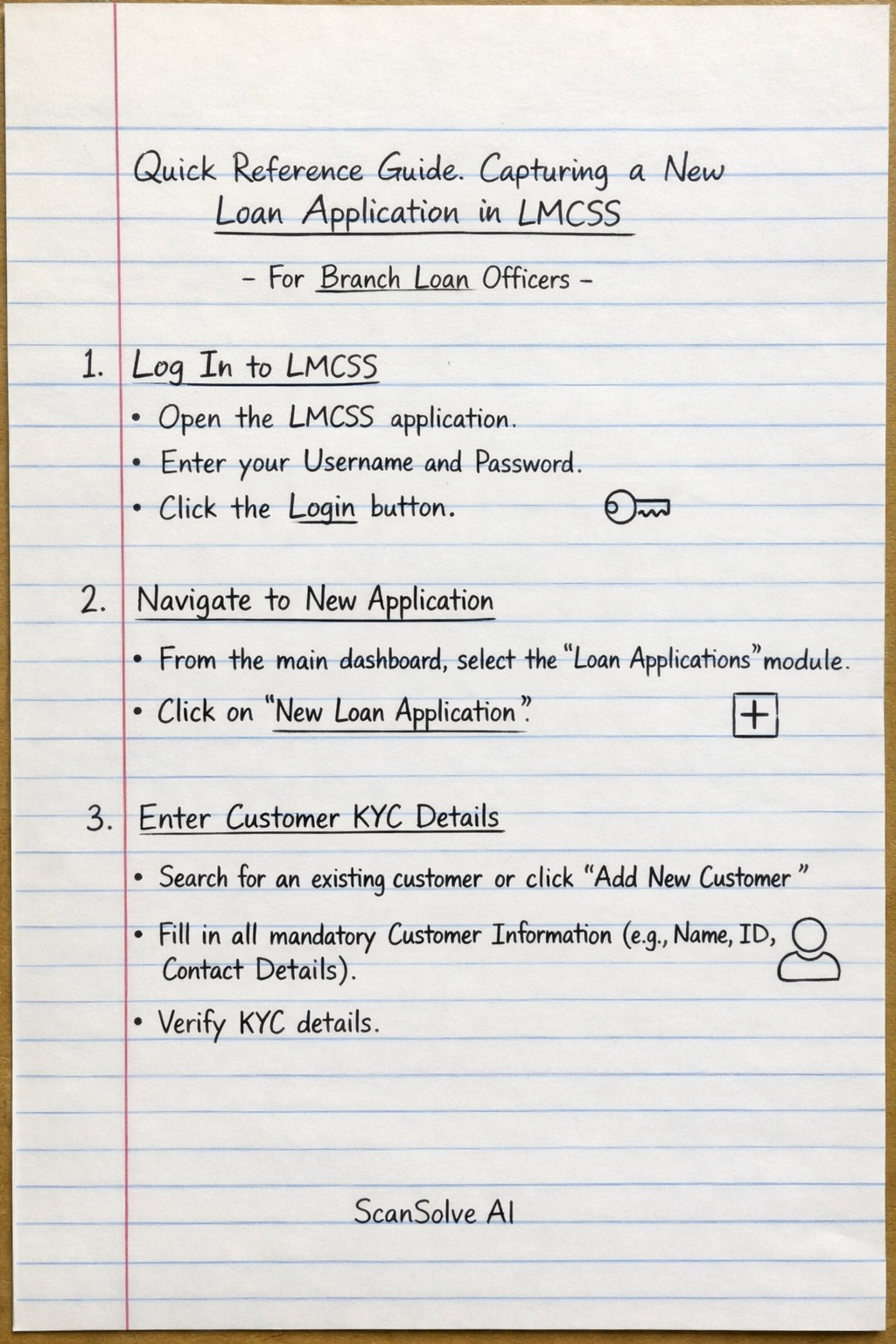
Quick Reference Guide: Capturing a New Loan Application in LMCSS
For Branch Loan Officers
This guide outlines the essential steps to efficiently capture a new loan application in the Microfinance Loan Management and Customer Service System (LMCSS).
-
Log In to LMCSS
- Open the LMCSS application.
- Enter your Username and Password.
- Click the Login button. (Imagine a "Key" icon)
-
Navigate to New Application
- From the main dashboard, select the "Loan Applications" module.
- Click on "New Loan Application". (Imagine a "+" icon next to "Loan Application")
-
Enter Customer KYC Details
- Search for an existing customer or click "Add New Customer".
- Fill in all mandatory Customer Information (e.g., Name, ID, Contact Details).
- Verify KYC details. (Imagine a "User Profile" icon)
-
Input Loan Product Details
- Select the appropriate Loan Product from the dropdown list.
- Enter the Requested Loan Amount and Loan Tenure.
- Confirm the Interest Rate and Repayment Schedule. (Imagine a "Money Bag" icon)
-
Upload Supporting Documents
- Go to the "Documents" section.
- Attach scanned copies of all required supporting documents (e.g., ID, income proof, collateral documents).
- Ensure files are correctly named and uploaded. (Imagine a "Paperclip" or "Upload" icon)
-
Review and Verify Application
- Carefully review all entered Customer and Loan Details for accuracy.
- Check for any missing information or discrepancies.
- Confirm compliance with loan policy guidelines. (Imagine an "Eye" or "Checkmark" icon)
-
Submit Application for Approval
- Click the "Submit for Approval" button.
- A confirmation message will appear, providing the unique Application ID. (Imagine a "Send" or "Arrow" icon)
-
Record Application ID
- Note down the Application ID for future reference and customer inquiries.
- Inform the customer about the next steps and how to track their application status. (Imagine a "Clipboard" or "ID Card" icon)
Still stuck on this one?
Ask a follow-up, and the answer starts from this question.
More Business/Management Questions
Handwritten Step-by-Step Solution
Get this as a handwritten image on WhatsApp — like a tutor wrote it for you.
Try on WhatsApp