
We read your photo as:
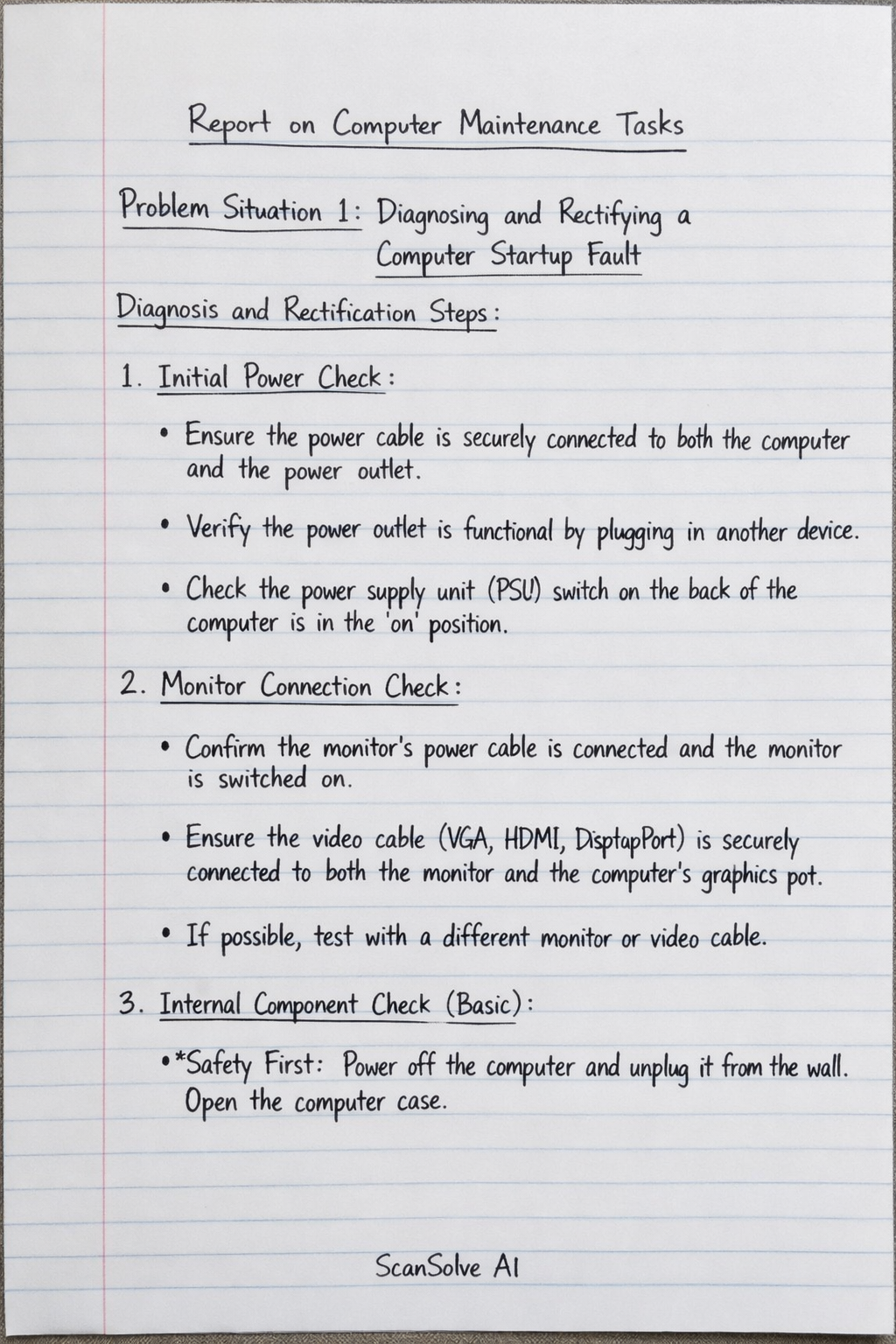
Report on Computer Maintenance Tasks
Computer Science
ScanSolve AI Answer
Here is a report on the two problem situations:
Report on Computer Maintenance Tasks
Problem Situation 1: Diagnosing and Rectifying a Computer Startup Fault
Diagnosis and Rectification Steps:
- Initial Power Check:
- Ensure the power cable is securely connected to both the computer and the power outlet.
- Verify the power outlet is functional by plugging in another device.
- Check the power supply unit (PSU) switch on the back of the computer is in the 'on' position.
- Monitor Connection Check:
- Confirm the monitor's power cable is connected and the monitor is switched on.
- Ensure the video cable (VGA, HDMI, DisplayPort) is securely connected to both the monitor and the computer's graphics port.
- If possible, test with a different monitor or video cable.
- Internal Component Check (Basic):
- Safety First: Power off the computer and unplug it from the wall. Open the computer case.
- RAM Reseating: Gently unclip and remove the RAM modules, then reinsert them firmly into their slots until the clips snap into place. Loose RAM is a common cause of no-boot issues.
- Graphics Card Reseating (if dedicated): If there's a separate graphics card, ensure it's seated correctly in its PCIe slot and any supplementary power cables are connected.
- Cable Connections: Briefly check that all internal power cables (to motherboard, hard drives) and data cables (SATA) are securely connected.
- Minimal Boot Test:
- Disconnect all non-essential peripherals (USB devices, external drives, etc.) to rule out conflicts.
- Attempt to boot the computer with only the essential components (motherboard, CPU, one RAM stick, graphics card if integrated, power supply).
Proposed Recommendations (if fault persists):
- Test with known good components: If available, swap out components like the power supply, RAM, or even the graphics card with known working ones to isolate the faulty part.
- Check for POST codes/beeps: Listen for beep codes from the motherboard or look for diagnostic LEDs, which can indicate specific hardware failures (e.g., RAM, CPU, GPU).
- Professional assistance: If basic troubleshooting does not identify or rectify the fault, it may indicate a more complex issue with the motherboard or CPU, requiring a qualified technician.
Problem Situation 2: RAM Replacement and Operating System Installation
Task Report:
- Preparation and Safety:
- The computer was powered down completely and unplugged from the mains power supply.
- Anti-static precautions were taken (e.g., touching a grounded metal object) to prevent electrostatic discharge damage to components.
- Opening the Computer Case:
- The side panel of the computer case was carefully removed to gain access to the internal components.
- Replacing RAM Chips:
- The existing RAM modules were located on the motherboard.
- The small clips on either side of each RAM slot were pushed outwards to release the old RAM modules.
- The old RAM modules were carefully removed from their slots.
- The new RAM chips were aligned with the notches in the RAM slots.
- Each new RAM module was inserted firmly into its slot until the clips on both sides automatically snapped into place, securing the module.
- Closing the Computer Case:
- The side panel of the computer case was reattached and secured.
- Installing a New Operating System:
- A bootable USB drive containing the new operating system installation files was prepared and inserted into a USB port.
- The computer was powered on, and the BIOS/UEFI settings were accessed (usually by pressing F2, Del, F10, or F12 during startup) to set the USB drive as the primary boot device.
- The computer was restarted, and it booted from the USB drive, initiating the operating system installation process.
- The on-screen prompts were followed to select language, time, and keyboard settings.
- A "Custom" installation was chosen to perform a clean install, and the existing partitions on the hard drive were deleted, then a new partition was created and formatted for the OS installation.
- The installation proceeded, copying files and configuring the system.
- After the main installation, the computer restarted several times.
- Post-installation, necessary device drivers (graphics, audio, network) were installed, followed by system updates and essential software applications.
- The operating system was successfully installed and configured for use.
Was this helpful?
Still stuck on this one?
Ask a follow-up, and the answer starts from this question.
Got a different question?Ask your own question
More Computer Science Questions
QWhat are the key concepts of computer maintenance, including its definition, types, purpose…QWrite 5 ways of care for a computer to keep it in good conditionQWrite a report on identifying and troubleshooting basic computer problems,an interview you made in…QCreate a checklist of computer components, detailing their purpose, options, and justification for…QMatching: A. Replacing a new Power Supply to the computer due to sudden power supply failure. B…
Handwritten Step-by-Step Solution
Get this as a handwritten image on WhatsApp — like a tutor wrote it for you.
Try on WhatsApp