
We read your photo as:
Explain the steps to perform common tasks in Microsoft Publisher, including creating a publication, choosing templates, inserting text boxes and images, formatting text, and aligning objects.
ScanSolve AI Answer
Step-by-step solution
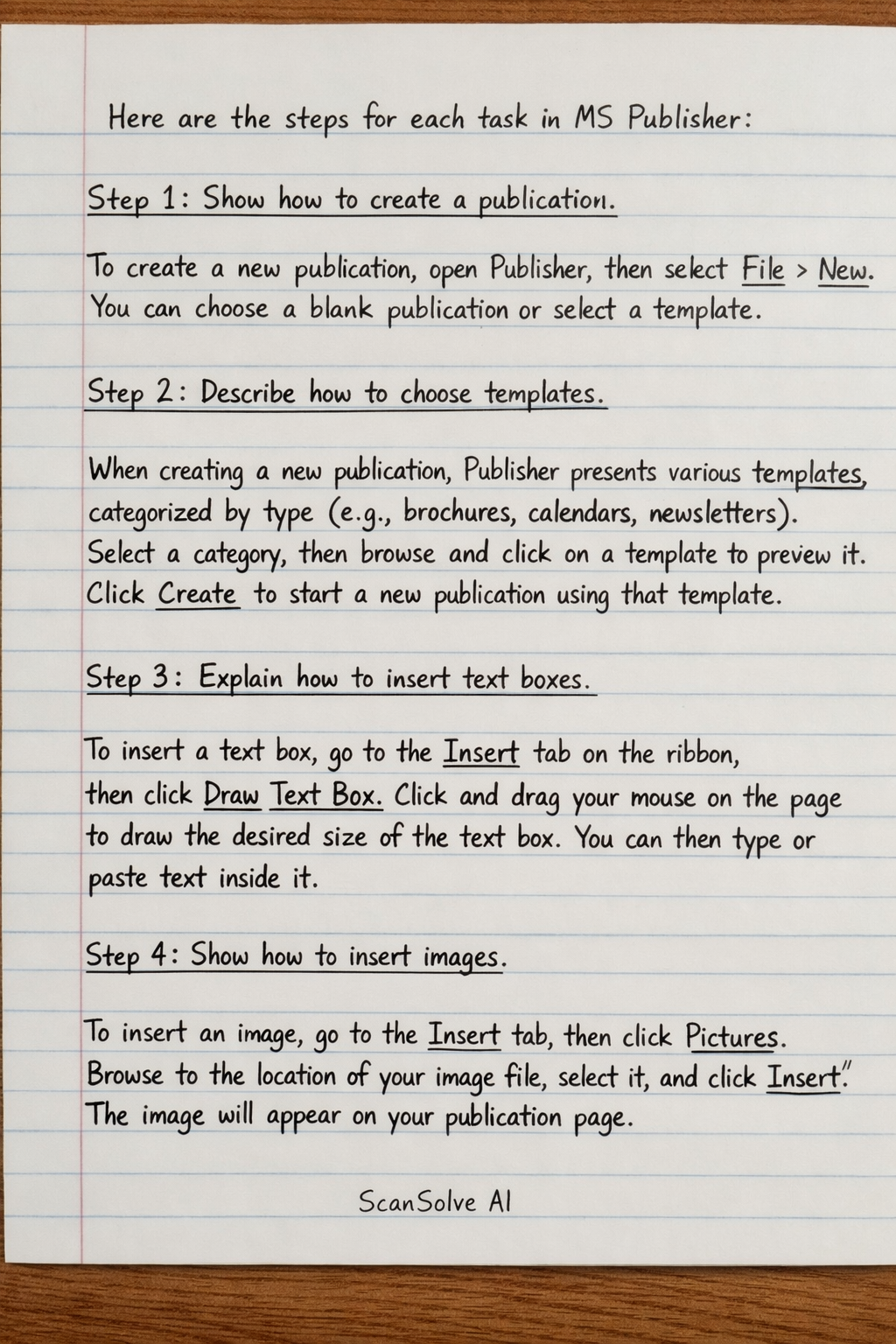
15 stepsHere are the steps for each task in MS Publisher:
Show how to create a publication.
To create a new publication, open Publisher, then select File > New. You can choose a blank publication or select a template.
Describe how to choose templates.
When creating a new publication, Publisher presents various templates categorized by type (e.g., brochures, calendars, newsletters). Select a category, then browse and click on a template to preview it. Click Create to start a new publication using that template.
Explain how to insert text boxes.
To insert a text box, go to the Insert tab on the ribbon, then click Draw Text Box. Click and drag your mouse on the page to draw the desired size of the text box. You can then type or paste text inside it.
Show how to insert images.
To insert an image, go to the Insert tab, then click Pictures. Browse to the location of your image file, select it, and click Insert. The image will appear on your publication page.
Describe how to format text.
To format text, select the text you want to modify. Use the tools in the Home tab on the ribbon to change font, size, color, bold, italicize, underline, alignment, and line spacing.
Explain how to align objects.
To align objects, select multiple objects by holding Shift and clicking each one. Go to the Picture Tools Format or Shape Format tab, then click Align. Choose an alignment option like Align Left, Align Center, or Distribute Horizontally to arrange them relative to each other or the page.
Show how to apply design schemes.
To apply a design scheme, go to the Page Design tab. In the Schemes group, click on the More arrow to see available design schemes. Click on a scheme to apply its coordinated set of fonts and colors to your entire publication.
Describe how to create a brochure.
To create a brochure, open Publisher and select File > New. Search for "brochure" templates. Choose a suitable brochure template, customize its text, images, and design elements to fit your content, and then save your work.
Explain how to insert shapes.
To insert shapes, go to the Insert tab, then click Shapes. A gallery of shapes will appear. Click on the desired shape, then click and drag on your publication page to draw it to the preferred size.
Show how to group objects.
To group objects, select all the objects you want to group by holding Shift and clicking each one. Right-click on any of the selected objects, then choose Group > Group. This combines them into a single unit that can be moved or resized together.
Describe how to resize objects.
To resize an object, click on it to select it. Drag one of the sizing handles (small circles or squares) that appear around its border. Dragging a corner handle resizes proportionally, while side handles change only one dimension.
Explain how to apply colors.
To apply colors to an object (like a shape or text box), select the object. Go to the Shape Format tab. Use Shape Fill to change the background color, Shape Outline for the border color, and Text Fill (if it's a text box) for the text color.
Show how to preview publication.
To preview your publication before printing, go to File > Print. The right pane will display a print preview of your publication, showing how it will look when printed.
Describe how to print a publication.
To print a publication, go to File > Print. In the print dialog, select your printer, specify the number of copies, and choose any other print settings (e.g., page range, paper size). Click Print to send the publication to the printer.
Explain how to export as PDF.
To export a publication as a PDF, go to File > Export. Click Create PDF/XPS Document, then click the Create PDF/XPS button. Choose a location to save the file, give it a name, and click Publish.
Still stuck on this one?
Ask a follow-up, and the answer starts from this question.
More Computer Science Questions
Handwritten Step-by-Step Solution
Get this as a handwritten image on WhatsApp — like a tutor wrote it for you.
Try on WhatsApp