
We read your photo as:
Outline the steps for creating a presentation, adding slides, inserting text and images, applying themes, and adding transitions in MS PowerPoint.
ScanSolve AI Answer
Step-by-step solution
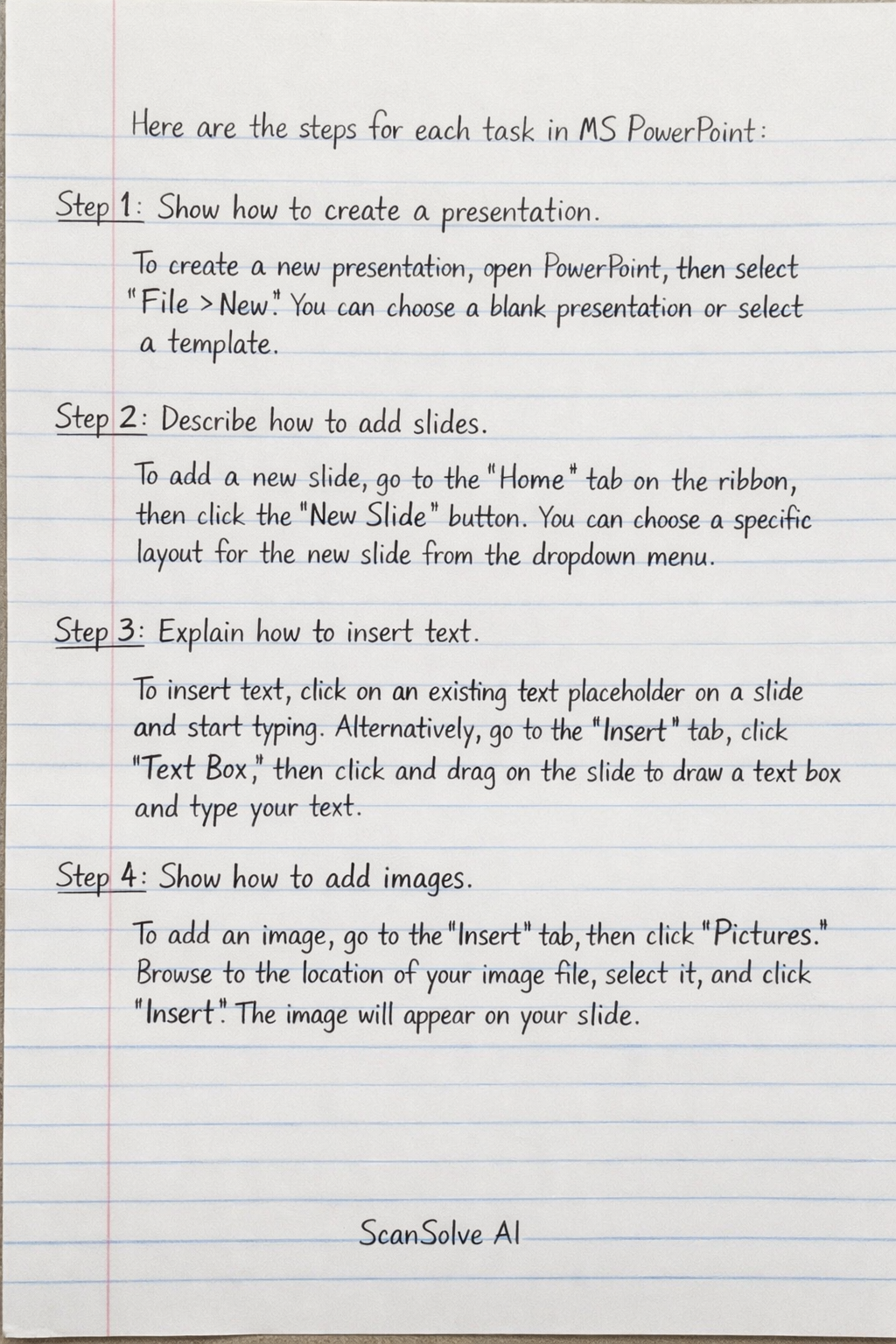
20 stepsHere are the steps for each task in MS PowerPoint:
Show how to create a presentation.
To create a new presentation, open PowerPoint, then select File > New. You can choose a blank presentation or select a template.
Describe how to add slides.
To add a new slide, go to the Home tab on the ribbon, then click the New Slide button. You can choose a specific layout for the new slide from the dropdown menu.
Explain how to insert text.
To insert text, click on an existing text placeholder on a slide and start typing. Alternatively, go to the Insert tab, click Text Box, then click and drag on the slide to draw a text box and type your text.
Show how to add images.
To add an image, go to the Insert tab, then click Pictures. Browse to the location of your image file, select it, and click Insert. The image will appear on your slide.
Describe how to apply themes.
To apply a theme, go to the Design tab on the ribbon. Browse through the available themes in the Themes group and click on one to apply its coordinated colors, fonts, and effects to your entire presentation.
Explain how to add transitions.
To add a transition between slides, select the slide you want the transition to precede. Go to the Transitions tab, then click on a transition effect from the gallery. You can also adjust timing and sound options.
Show how to add animations.
To add an animation to an object (like text or an image), select the object on the slide. Go to the Animations tab, then choose an animation effect from the gallery (e.g., Entrance, Emphasis, Exit).
Describe how to insert charts.
To insert a chart, go to the Insert tab, then click Chart. Choose the type of chart you want (e.g., Column, Line, Pie), then click OK. A spreadsheet will appear for you to enter your data.
Explain how to use slide layouts.
To change a slide's layout, select the slide in the thumbnail pane. Go to the Home tab, then click Layout. Choose a new layout from the options provided (e.g., Title Slide, Title and Content, Two Content).
Show how to reorder slides.
To reorder slides, click and drag a slide thumbnail in the left-hand slide pane to its new position in the presentation. A horizontal line will indicate where the slide will be placed.
Describe how to add audio/video.
To add audio or video, go to the Insert tab. Click Audio or Video, then choose to insert from your PC or online sources. Select the file and click Insert.
Explain how to use slide master.
The Slide Master allows you to make global design changes to your presentation. Go to the View tab, then click Slide Master. Any changes made here (e.g., font, background, placeholders) will apply to all slides using that master layout.
Show how to start slideshow.
To start a slideshow, go to the Slide Show tab. Click From Beginning to start from the first slide, or From Current Slide to start from the selected slide. You can also press the F5 key.
Describe how to print slides.
To print slides, go to File > Print. In the print dialog, select your printer, specify the number of copies, and choose print options like printing full pages, notes pages, or handouts. Click Print.
Explain how to add notes.
To add notes to a slide, click on the Notes pane located below the slide editing area. If it's not visible, click Notes in the View tab. Type your speaker notes into this pane.
Show how to align objects.
To align objects, select multiple objects by holding Shift and clicking each one. Go to the Shape Format or Picture Format tab, then click Align. Choose an alignment option like Align Left or Distribute Horizontally.
Describe how to export presentation.
To export a presentation, go to File > Export. You can choose various export options such as creating a PDF/XPS document, creating a video, or packaging the presentation for a CD.
Explain how to set timings.
To set timings for your slides and animations, go to the Slide Show tab, then click Rehearse Timings. PowerPoint will start the slideshow, and you can advance through it at your desired pace. The timings will be recorded.
Show how to insert shapes.
To insert shapes, go to the Insert tab, then click Shapes. A gallery of shapes will appear. Click on the desired shape, then click and drag on your slide to draw it to the preferred size.
Describe how to collaborate on presentation.
To collaborate, save your presentation to a cloud service like OneDrive or SharePoint. Then, click the Share button in the top right corner of PowerPoint, enter the email addresses of collaborators, and set their permissions (e.g., Can edit, Can view).
Still stuck on this one?
Ask a follow-up, and the answer starts from this question.
More Computer Science Questions
Handwritten Step-by-Step Solution
Get this as a handwritten image on WhatsApp — like a tutor wrote it for you.
Try on WhatsApp