
We read your photo as:
Complete the spreadsheet tasks as outlined in sections 2.1 to 2.9, modifying text, inserting rows/columns, applying formatting, and using specific formulas.
ScanSolve AI Answer
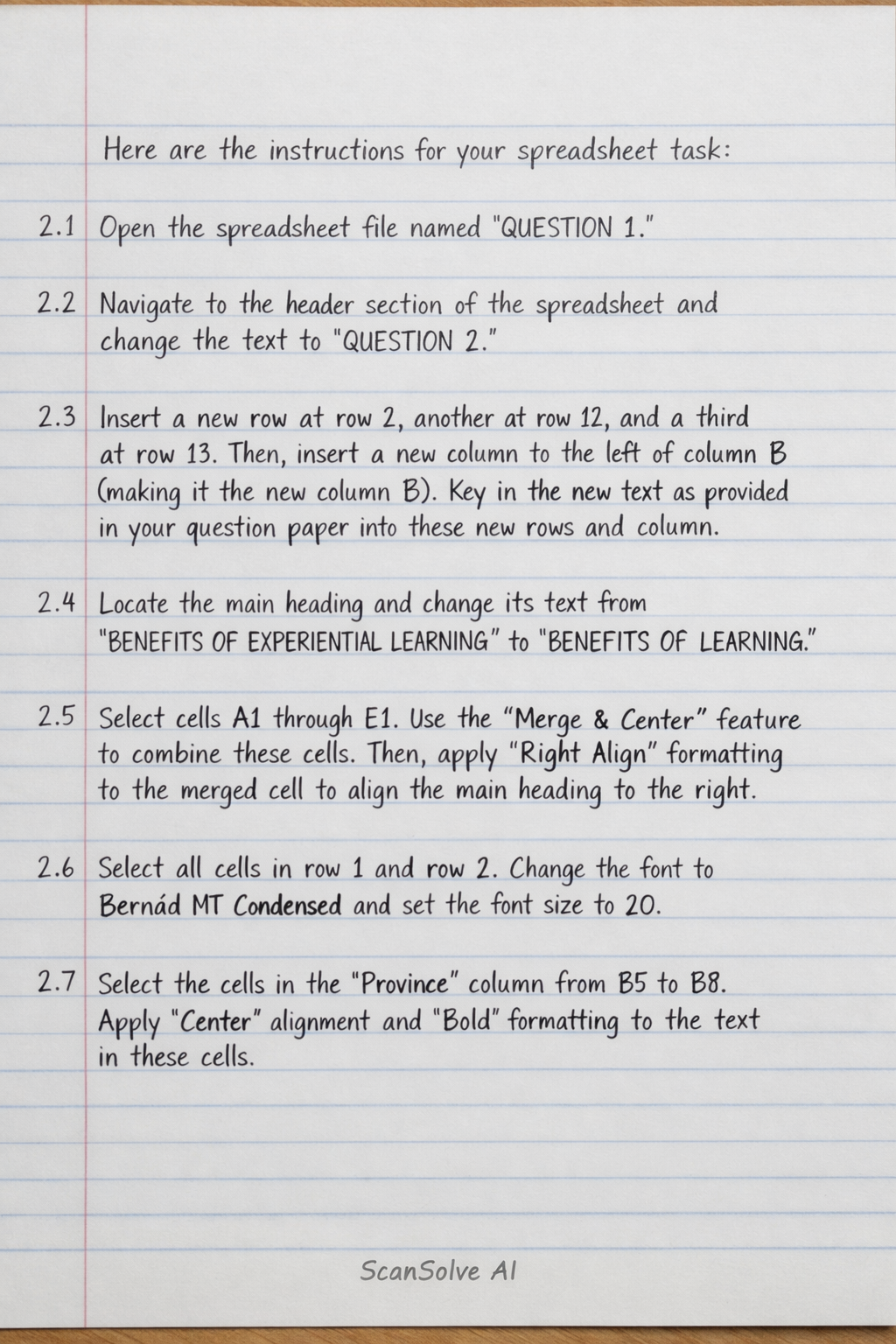
Here are the instructions for your spreadsheet task:
2.1
Open the spreadsheet file named "QUESTION 1".
2.2
Navigate to the header section of the spreadsheet and change the text to "QUESTION 2".
2.3
Insert a new row at row 2, another at row 12, and a third at row 13. Then, insert a new column to the left of column B (making it the new column B). Key in the new text as provided in your question paper into these new rows and column.
2.4
Locate the main heading and change its text from "BENEFITS OF EXPERIENTIAL LEARNING" to "BENEFITS OF PRACTICAL LEARNING".
2.5
Select cells A1 through E1. Use the "Merge & Center" feature to combine these cells. Then, apply "Right Align" formatting to the merged cell to align the main heading to the right.
2.6
Select all cells in row 1 and row 2. Change the font to Bernàd MT Condensed and set the font size to 20.
2.7
Select the cells in the "Province" column from B5 to B8. Apply "Center" alignment and "Bold" formatting to the text in these cells.
2.8
Select all cells in column D and column E that contain figures. Apply "Right Align" formatting to these cells.
2.9
Insert the following formulae into the specified cells. (Note: The exact cell references for "Number of Beneficiaries" and specific programs like "INTERNSHIP" and "MENTORSHIP" will depend on your spreadsheet's layout. The examples below assume typical placements; adjust as needed.)
2.9.1
To calculate the estimated increase for 2025, assuming "Number of Beneficiaries" is in column C (e.g., C5) and the 50% value is in cell E2: (This formula should be entered in the first cell of the "Estimated Increase for 2025" column, e.g., D5, and then copied down.)
2.9.2
To calculate the total number of beneficiaries for all programmes, assuming the numbers are in cells C5 through C10:
(This formula would typically be placed in a summary cell, e.g., C11.)
2.9.3
To calculate the average estimated increase for 2025, assuming the estimated increases are in cells D5 through D10:
(This formula would typically be placed in a summary cell, e.g., D11.)
2.9.4
To find the highest estimated increase for 2025, assuming the estimated increases are in cells D5 through D10:
(This formula would typically be placed in a summary cell, e.g., D12.)
2.9.5
To calculate the difference in the number of beneficiaries between INTERNSHIP and MENTORSHIP, assuming INTERNSHIP beneficiaries are in C6 and MENTORSHIP beneficiaries are in C7:
(This formula would typically be placed in a summary cell, e.g., C13.)
2.10
Use the Autofill handle (the small square at the bottom-right corner of a selected cell) to copy the formulae down to the indicated cells in column E.
2.11
Select cells E11, E12, and E13. Apply a double underline formatting to the calculated figures in these cells.
2.12
Select all cells in column E that contain figures. Format these cells to display as numbers with two decimal places.
2.13
Select rows 10 through 13. Change the text in these rows to italics, set the font to Baskerville Old Face, and the font size to 12.
2.14
Apply horizontal and vertical lines (borders) to the cells as indicated in your question paper.
2.15
Select the entire data range of your spreadsheet. Apply a thick outer border to this range.
2.16
Adjust the width of each column to ensure that all contents are fully visible and displayed as indicated in your question paper. You can often do this by double-clicking the boundary between column headers.
2.17
Save your spreadsheet file with the name "QUESTION 2".
2.18
Go to the print settings. Configure the page to be A4 size and landscape orientation. Ensure that the option to print row and column headings is deselected before printing.
Still stuck on this one?
Ask a follow-up, and the answer starts from this question.
More Business/Management Questions
Handwritten Step-by-Step Solution
Get this as a handwritten image on WhatsApp — like a tutor wrote it for you.
Try on WhatsApp