
We read your photo as:
Create a spreadsheet with specific formatting and use VLOOKUP to pull data from another sheet.
Computer Science
ScanSolve AI Answer
Step-by-step solution
9 stepsHere are the solutions for TASK A, covering the spreadsheet activities:
Merge cells A1 to G, centralize the text, change font size to 16 and font type to Algerian.
- Select cells A1 through G1.
- Click "Merge & Center" in the Alignment group of the Home tab.
- Change the font size to 16.
- Change the font type to Algerian.
Merge cells B2 to G2, centralize the text, change font type to Arial black and font size to 14.
- Select cells B2 through G2.
- Click "Merge & Center" in the Alignment group of the Home tab.
- Change the font type to Arial Black.
- Change the font size to 14.
Put a thick outside borders from A3 to G17 as well as all borders.
- Select the range A3:G17.
- Apply "All Borders" to this selection.
- With the same range still selected, apply "Thick Outside Borders".
In cell C4 get the cost of item with PID P005 from the PRODUCT sheet. Copy the formula right up to C17 and Write the formula found in cell C9.
- Assuming the Product ID (PID) is in column B of the SALES sheet (e.g., B4 for the item in row 4), and in the PRODUCT sheet, PID is in column A and Cost is in column B.
- Formula in cell C4:
=VLOOKUP(B4,PRODUCT!A:B,2,FALSE) - Copy this formula down to C17.
- Formula found in cell C9:
In cell E4, compute the Total for item with PID P005. Copy the formula right up to E17. Write the formulae found in E10.
- Assuming Cost is in column C (e.g., C4) and Quantity is in column D (e.g., D4).
- Formula in cell E4:
=C4*D4 - Copy this formula down to E17.
- Formula found in cell E10:
In cell F4, compute the discount for item with PID P005. It is calculated as follows. If total cost is greater 300000 or quantity greater than 20, a discount of 5 percent is awarded else a discount of 3 %. Copy the formula to get the discount for all the other items. Write the formula found in cell F5.
- Assuming Total Cost is in column E (e.g., E4) and Quantity is in column D (e.g., D4).
- Formula in cell F4:
=IF(OR(E4>300000,D4>20),E4*0.05,E4*0.03) - Copy this formula down to F17.
- Formula found in cell F5:
In cell G4, compute the final amount by subtracting discount from Total. Copy the formula right up to G17. Write the formula found in G13.
- Assuming Total is in column E (e.g., E4) and Discount is in column F (e.g., F4).
- Formula in cell G4:
=E4-F4 - Copy this formula down to G17.
- Formula found in cell G13:
Select from cell C4 to G17 and put a thousand separator and XAF currency.
- Select the range C4:G17.
- Right-click, choose "Format Cells".
- Go to the "Number" tab.
- Select "Currency" category.
- Choose "XAF" as the symbol.
- Ensure "Use 1000 Separator (,)" is checked.
Print the sale table.
- Go to "File" -> "Print".
- Ensure the correct print area (the sales table) is selected.
- Click "Print".
Was this helpful?
Still stuck on this one?
Ask a follow-up, and the answer starts from this question.
Got a different question?Ask your own question
More Computer Science Questions
QUnderstand the VLOOKUP function.QHow do I complete a spreadsheet task including copying formulas, conditional formatting, adding…QComplete the spreadsheet tasks as outlined in sections 2.1 to 2.9, modifying text, inserting…QSpreadsheet software is an application that organizes data in rows and columns, allowing users to…QOpen an existing Excel spreadsheet, navigate to a specific cell containing numerical data, and…
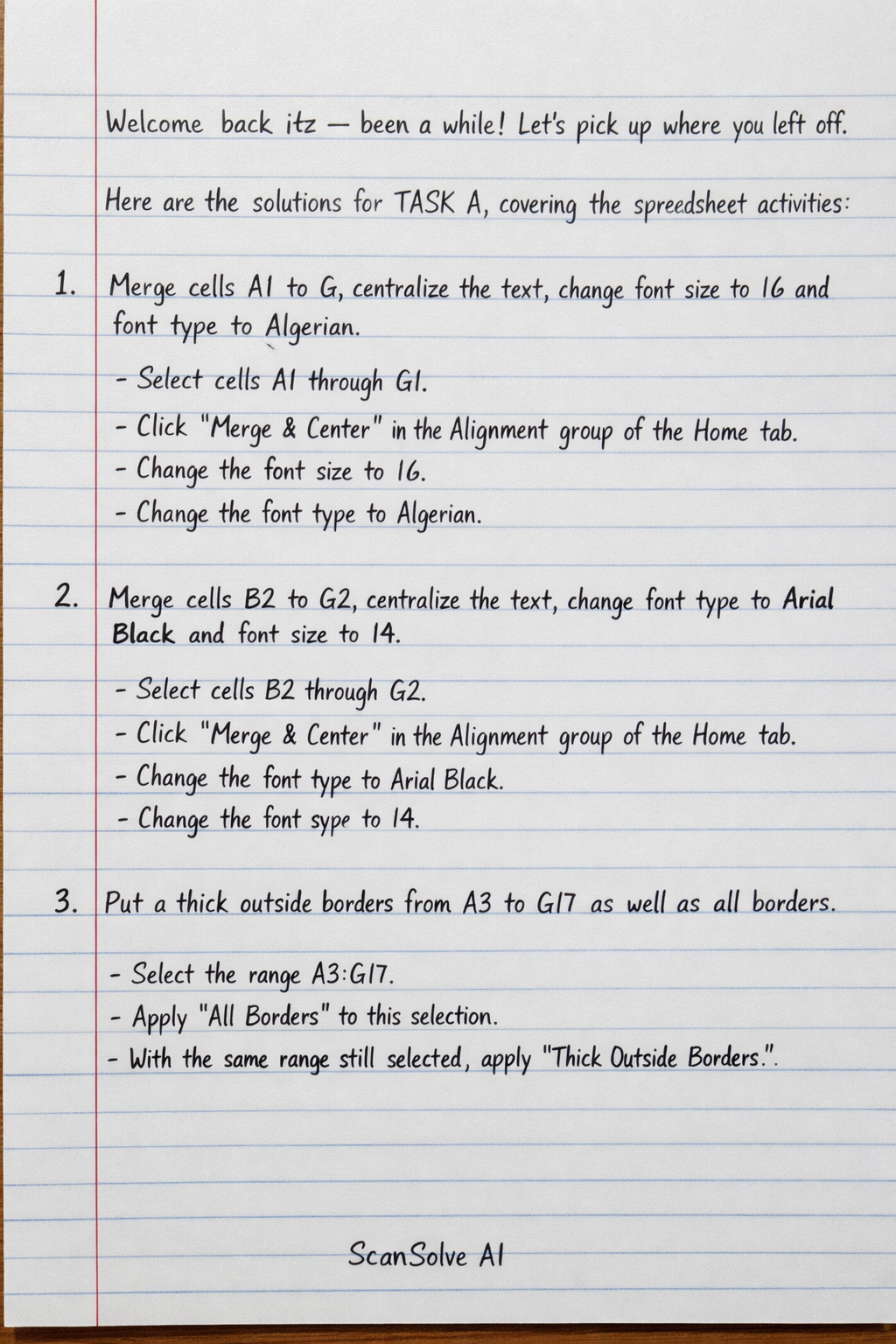
Handwritten Step-by-Step Solution
Get this as a handwritten image on WhatsApp — like a tutor wrote it for you.
Try on WhatsApp